
Checkout SDK
Integrate the Hubtel Checkout SDK in mobile apps.
Android SDK
Overview
The Hubtel Checkout SDK is a library that simplifies the process of implementing a checkout flow in your Android application. It provides a set of classes and methods to help you create and manage a checkout intent, handle the checkout result, and retrieve important information about the transaction.
Installation
The Hubtel Checkout library is available at Maven Central. To integrate it into your Android project, follow these steps:
Step 1: Open your project in Android Studio.
Step 2: Go to the build.gradle file of your app module.
Step 3: Add the following line to the dependencies block:
dependencies {
    implementation "com.hubtel:merchant-checkout-sdk:1.0.15"
}
Step 4: Sync your project to download the library and make it available for use in your project.
Step 5: Create an intent with the CheckoutIntent.Builder.
Getting Started
Here's a quick explanation of the parameters used in the CheckoutIntent.Builder:
REQUEST PARAMETERS
| Parameter | Type | Requirement | Description |
|---|---|---|---|
| context | Object | Optional | The Context object representing the current context of the application. |
| amount | Float | Mandatory | The transaction amount. NB: Only 2 decimal places is allowed E.g.: 0.50. |
| callbackUrl | String | Mandatory | A url provided by the merchant to receive callback on the final status of a payment from Hubtel. |
| apiKey | String | Mandatory | Base64 encoded string of the merchant’s API ID and Key. Also passed to the configuration object. Create API keys here. |
| description | String | Mandatory | A brief description or detail about the transaction. |
| merchantId | String | Mandatory | The Collection Account Number of the merchant initiating the transaction. Kindly find this here. |
| clientReference | String | Mandatory | A unique reference string for the transaction generated by the client. Must be unique for every transaction and preferably be alphanumeric characters. Maximum length is 36 characters. |
| customerPhoneNumber | String | Mandatory | The phone number of the customer initiating the transaction. |
| title | String | Optional | The title to be displayed on the Checkout UI. |
| subtitle | String | Optional | The subtitle to be displayed on the Checkout UI. |
| logoUrl | String | Optional | The URL of the logo to be displayed on the Checkout UI. |
| themeConfig | Object | Optional | ThemeConfig object on which primary color is set for the library views. |
Note
Be sure to provide appropriate values for these parameters based on your specific use case and requirements. Also note that clientReferences must never be duplicated for any transaction. DO NOT add 'Basic' to your encoded credentials.
Integration
Creating a Checkout Intent
To initiate a checkout process, you need to create a checkout intent using the CheckoutIntent.Builder class. This builder allows you to set various parameters related to the checkout, such as the amount, description, merchant ID, customer information, and more. Here's an example of creating a checkout intent:
val intent = CheckoutIntent.Builder(this)
.setAmount(0.1)
.setApiKey("T0UwajAzcjo5ZjAxMzhkOTk5ZmM0ODMxYjc3MWFhMzEzYTNjMThhNA==")
.setCallbackUrl("https://cd81-154-47-25-8.ngrok-free.app/payment-callback")
.setDescription("Rice with Coleslaw")
.setMerchantId("11684")
.setClientReference(UUID.randomUUID().toString())
.setCustomerPhoneNumber("233540343395")
.setTheme(themeConfig)
.build()
Note
Be sure to replace the parameter values with your own data.
Handling the Checkout Result
It is mandatory to check the final status of the transaction. To handle the result of the checkout process, you need to override the onActivityResult method in your activity or fragment. In this method, you can check if the request code matches the checkout request code and if the result code is RESULT_OK. If both conditions are met, you can retrieve the checkout status using the CheckoutStatus.CHECKOUT_RESULT extra key. Here's an example:
override fun onActivityResult(requestCode: Int, resultCode: Int, data: Intent?) {
    super.onActivityResult(requestCode, resultCode, data)
    if (requestCode == CHECKOUT_REQUEST_CODE && resultCode == RESULT_OK) {
        val status = intent?.getParcelableExtra<CheckoutStatus?>(CheckoutStatus.CHECKOUT_RESULT)
        // Handle the checkout status

        //fields accessible from CheckoutStatus
        status?.isCanceled
        status?.isPaymentSuccessful
        status?.transactionId
        status?.paymentMethod
    }
}

//Structure of CheckoutStatus
CheckoutStatus(transactionId=ddc09a11f35940a39107a18429380345, paymentMethod=CARD, isCanceled=false, isPaymentSuccessful=true)
Note
Replace CHECKOUT_REQUEST_CODE with the actual request code used when starting the checkout process.
Checkout Status Cases
The CheckoutStatus is an enum displaying the status of payment. It contains the following cases:
| PaymentStatus | Description |
|---|---|
| isCanceled | When the user closes the checkout page without performing any transaction. |
| transactionId | The unique id of the transaction. |
| isPaymentSuccessful | Whether payment is successful or not. |
| paymentMethod | The payment channel used by the customer. |
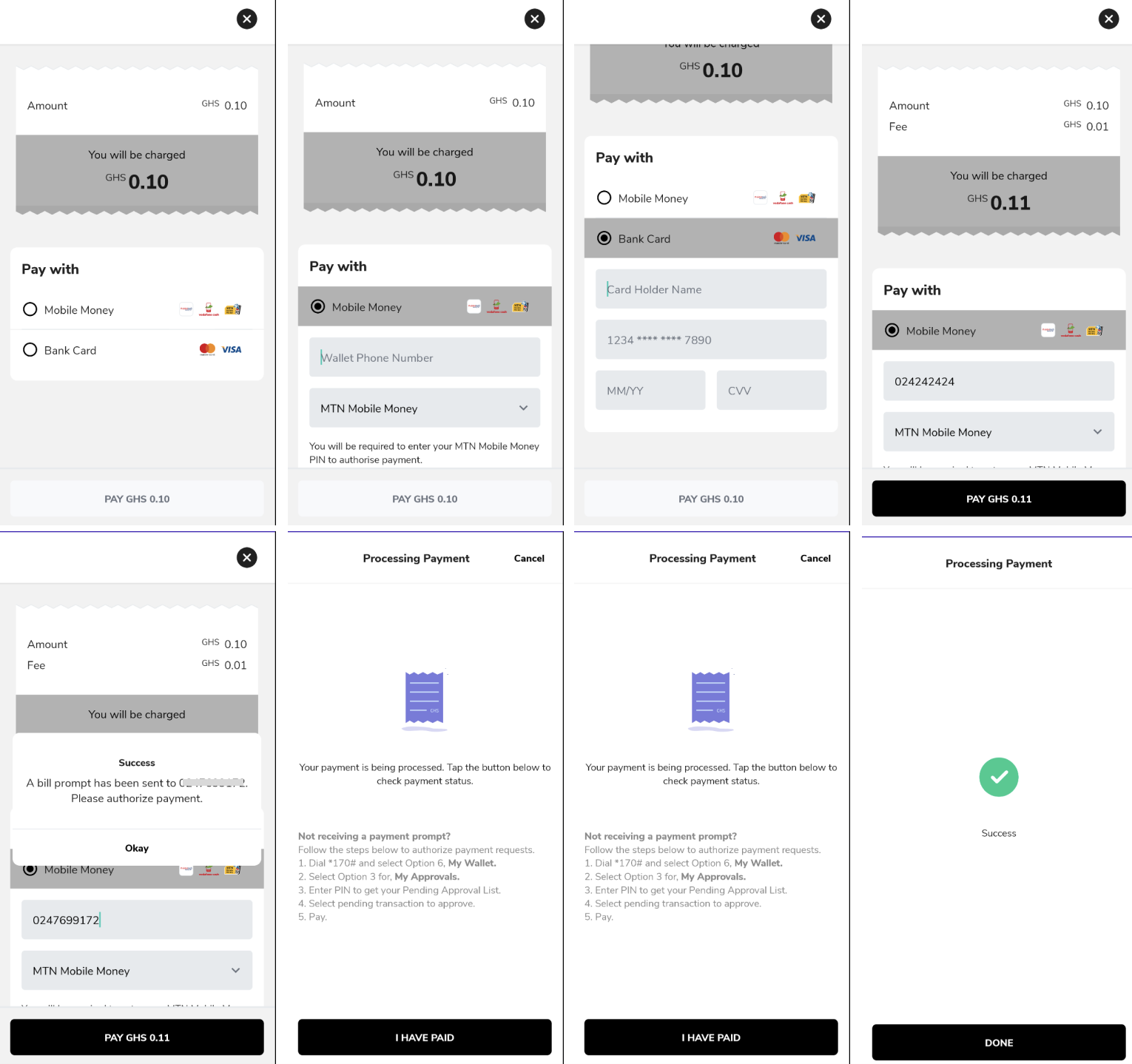
Screenshots
IOS SDK
Overview
The Hubtel Checkout SDK is a library that simplifies the process of implementing a checkout flow in your iOS application.
Installation
Hubtel Checkout is available through CocoaPods.
CocoaPods
- Add hubtel_merchant_checkout_sdk to your pod file
- Run pod install in your terminal to install the package. You can view the package on CocoaPods at https://cocoapods.org/pods/hubtel_merchant_checkout_sdk
Getting Started
OBJECTS REQUIRED
| Object | Type | Requirement | Description |
|---|---|---|---|
| HubtelCheckoutConfiguration | Object | Mandatory | An object used for payment processing with Hubtel Checkout service. It enables merchants to set their identification, specify a callback URL for payment notifications, and secure transactions with a merchant API key. |
| merchantId | String | Mandatory | The Collection Account Number of the merchant initiating the transaction. Kindly find this here. This is one of three parameters to be passed to the configuration object. |
| merchantApiKey | String | Mandatory | Base64 encoded string of the merchant’s API ID and Key. Also passed to the configuration object. Create API keys here. |
| callbackUrl | String | Mandatory | A url provided by the merchant to receive callback on the final status of a payment from Hubtel. Also passed to the configuration object. |
| PurchaseInfo | Object | Mandatory | Information about the purchase to process. Details are given below. |
| amount | Float | Mandatory | The transaction amount. NB: Only 2 decimal places is allowed E.g.: 0.50. |
| clientReference | String | Mandatory | A unique reference string for the transaction generated by the client. Must be unique for every transaction and preferably be alphanumeric characters. Maximum length is 36 characters. |
| customerPhoneNumber | String | Mandatory | The phone number of the customer initiating the transaction. |
| purchaseDescription | String | Mandatory | A brief description or detail about the transaction. |
| tintColor | Object | Optional | A UIColor of your choosing, or rather your design's. |
| Delegate Object | Object | Optional | An object that implements the PaymentFinishedDelegate in order to get information about UI changes from the sdk. |
Note
Kindly note that a clientReference must never be duplicated for any transaction. DO NOT add 'Basic' to your encoded credentials.
Integration
-
Add hubtel_merchant_checkout_sdk to your pod file.
-
Import hubtel_merchant_checkout_sdk in the ViewController where payment is to be initiated.
-
Create a HubtelCheckoutConfiguration object like this:
let configuration = HubtelCheckoutConfiguration(merchantId: "11624",
callbackUrl: "https://9cb7-154-160-1-110.ngrok-free.app/payment-callback",
merchantApiKey: "T0UwbjAzcko9ZjAxMzhkOTk5ZmM0ODMxYjc3MWFhMzEzYTNjNQ==")- Create a PurchaseInfo object like this:
let purchaseInfo = PurchaseInfo(amount: 1, customerPhoneNumber: "0545454545",
purchaseDescription: "This is a desc", clientReference:self.uuid.uuidString)- On your pay button having all necessary info set, call presentCheckout like this:
CheckoutViewController.presentCheckout(from: self, with: configuration, and: purchaseInfo,
 delegate: self, tintColor: UIColor.black)
Note
It is mandatory to check the final status of the transaction. The calling controller must implement the PaymentFinishedDelegate protocol to be able to see the checkout status. The PaymentFinishedDelegate protocol has a function with a single parameter value of type paymentStatus.
Example
extension ViewController: PaymentFinishedDelegate{
    func checkStatus(value: hubtel_merchant_checkout_sdk.PaymentStatus, transactionId: String) {
        print(value, transactionId)
    }
}
PaymentStatus Cases
The paymentStatus is an enum displaying the status of payment. It contains the following cases:
| PaymentStatus | Description |
|---|---|
| userCancelledPayment | When the user closes the checkout page without performing any transaction. |
| paymentFailed | When the user performs a transaction but payment fails. |
| paymentSuccessful | When the user finally pays successfully. |
| unknown | When the user cancels transaction after payment attempt without checking status. |
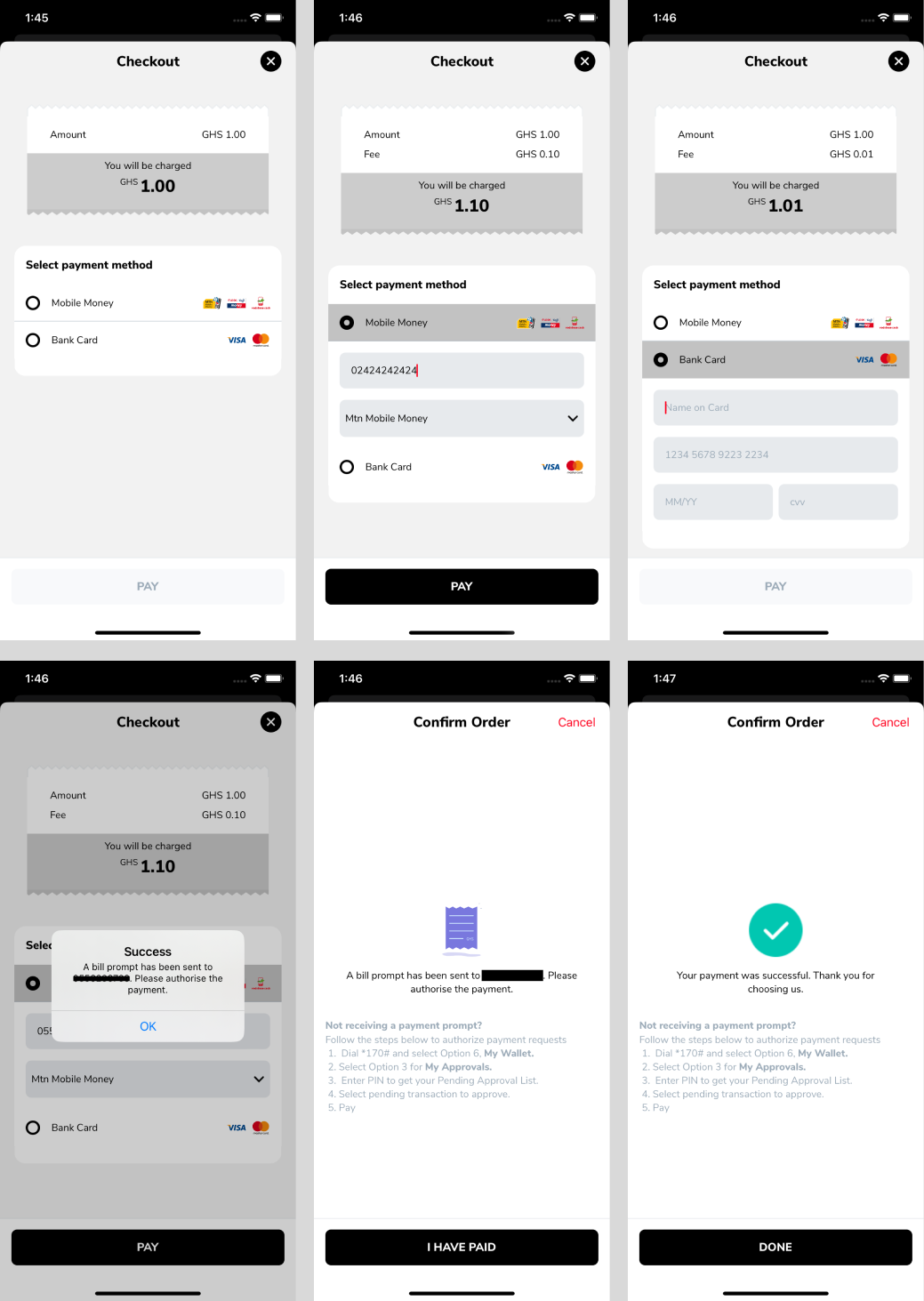
Screenshots
Flutter SDK
Overview
The Hubtel Checkout SDK is a library that simplifies the process of implementing a checkout flow in your Flutter application.
Getting Started
OBJECTS REQUIRED
| Object | Type | Requirement | Description |
|---|---|---|---|
| HubtelCheckoutConfiguration | Object | Mandatory | An object used for payment processing with Hubtel Checkout service. It enables merchants to set their identification, specify a callback URL for payment notifications, and secure transactions with a merchant API key. |
| merchantId | String | Mandatory | The Collection Account Number of the merchant initiating the transaction. Kindly find this here. This is one of three parameters to be passed to the configuration object. |
| merchantApiKey | String | Mandatory | Base64 encoded string of the merchant’s API ID and Key. Also passed to the configuration object. Create API keys here. |
| callbackUrl | String | Mandatory | A url provided by the merchant to receive callback on the final status of a payment from Hubtel. Also passed to the configuration object. |
| PurchaseInfo | Object | Mandatory | Information about the purchase to process. Details are given below. |
| amount | Float | Mandatory | The transaction amount. NB: Only 2 decimal places is allowed E.g.: 0.50. |
| clientReference | String | Mandatory | A unique reference string for the transaction generated by the client. Must be unique for every transaction and preferably be alphanumeric characters. Maximum length is 36 characters. |
| customerPhoneNumber | String | Mandatory | The phone number of the customer initiating the transaction. |
| purchaseDescription | String | Mandatory | A brief description or detail about the transaction. |
| ThemeConfig | Object | Optional | ThemeConfig object on which primary color is set for the library views. |
Note
Kindly note that a clientReference must never be duplicated for any transaction. DO NOT add 'Basic' to your encoded credentials.
Integration
The Hubtel Merchant Checkout package is available on Github for Flutter apps to integrate. It will be available on pub.dev soon.
-
Open your pubspec.yaml file.
-
Add the following lines of code.
hubtel_merchant_checkout_sdk:
git:
    url: https://github.com/hubtel/hubtel-mobile-flutter-merchant-checkout-sdk.git
ref: master- Create a HubtelCheckoutConfiguration object like this:
let configuration = HubtelCheckoutConfiguration(merchantId: "11624",
callbackUrl: "https://9cb7-154-160-1-110.ngrok-free.app/payment-callback",
merchantApiKey: "T0UwbjAzcko9ZjAxMzhkOTk5ZmM0ODMxYjc3MWFhMzEzYTNjNQ==")- Create a PurchaseInfo object like this:
let purchaseInfo = PurchaseInfo(amount: 1, customerPhoneNumber: "0545454545",
purchaseDescription: "This is a desc", clientReference:self.uuid.uuidString)- On your pay button having all necessary info set, call presentCheckout like this:
final onCheckoutCompleted = await Navigator.push(
    context,
    MaterialPageRoute(
        builder: (context) {
            return CheckoutScreen(
                purchaseInfo: PurchaseInfo,
                configuration: HubtelCheckoutConfiguration,
                themeConfig: ThemeConfig(primaryColor: Colors.black),
            );
        },
    ),
);

if (onCheckoutCompleted is CheckoutCompletionStatus){
    //Your activity after checkout Completion.
}
UnifiedCheckoutPaymentStatus Cases
The UnifiedCheckoutPaymentStatus is an enum displaying the status of payment. It contains the following cases:
| PaymentStatus | Description |
|---|---|
| userCancelledPayment | When the user closes the checkout page without performing any transaction. |
| paymentFailed | When the user performs a transaction but payment fails. |
| paymentSuccess | When the user finally pays successfully. |
| pending | When the payment is pending. |
| unknown | When the user cancels transaction after payment attempt without checking status. |
Callback
Hubtel mandatorily sends a payload to the callbackURL provided in each request. The callback URL you specified in the request should be implemented to listen for an HTTP POST payload from Hubtel.
Note
Businesses that want to add an extra layer of security to ensure callbacks reach their endpoint securely can whitelist Hubtel’s callback IP address: 108.129.40.25
SAMPLE CALLBACK (Successful)
{
  "ResponseCode": "0000",
  "Message": "success",
  "Data": {
      "Amount": 0.12,
      "Charges": 0.02,
      "AmountAfterCharges": 0.1,
      "Description": "The Vodafone Cash payment has been approved and processed successfully",
      "ClientReference": "7ee52f85-47ee-423e-b8f8-cda1a59390e1",
      "TransactionId": "4a5f113ceeec419399753dc7d704454d",
      "ExternalTransactionId": "0000007375832466",
      "AmountCharged": 0.12,
      "OrderId": "4a5f113ceeec419399753dc7d704454d",
      "PaymentDate": "2024-07-24T17:18:58.6620889Z"
  }
}
SAMPLE CALLBACK (Failed)
{
  "ResponseCode": "2001",
  "Message": "failed",
  "Data": {
      "Amount": 0.14,
      "Charges": 0.02,
      "AmountAfterCharges": 0.12,
      "Description": "Transaction Failed",
      "ClientReference": "678bdce9-501b-4291-8bfc-8b6e02253d67",
      "TransactionId": "478e03ec641b4a4287ca7dd0ec0e199b",
      "ExternalTransactionId": "42042068855",
      "AmountCharged": 0.14,
      "OrderId": "478e03ec641b4a4287ca7dd0ec0e199b",
      "PaymentDate": "2024-07-24T17:00:33.5848917Z"
  }
}
JavaScript SDK
Overview
The Checkout SDK provides a simplified way for businesses to accept payment from their customers. The SDK offers three primary methods of integration: Redirect, Iframe, and Modal. This allows developers to choose the integration method that best suits their needs.
Installation
To use the Hubtel Checkout SDK to collect payment, install the NPM Package or include the the CDN link in your HTML file:
npm i @hubteljs/checkoutPre-Checkout
Note
Before calling the Checkout SDK, most apps would call a Pre-Checkout API provided by their backend team to create the order for the client app to handle the payment. The implementation might differ. Also note that clientReferences must never be duplicated for any transaction. DO NOT add 'Basic' to your encoded credentials.
Sample Pre-checkout Request:
{
  "amount": "1",
  "phoneNumber": "0200000000"
}
Sample Pre-checkout Response:
{
  "message": "success",
  "code": "200",
  "data": {
    "description": "Payment of GHS 1.00 for (18013782) (MR JOHN DOE-233200000000) ",
    "clientReference": "f03dbdcf8d4040dd88d0a82794b0229f",
    "amount": 1.0,
    "customerMobileNumber": "233200000000",
    "callbackUrl": "https://yourcallbackurl.com"
  }
}
The response from the Pre-Checkout API usually contains all information needed for a successful checkout. Once retrieved the data is then passed onto the Hubtel Checkout SDK to begin the checkout.
Methods of Integration
The JavaScript SDK supports three primary methods of integration:
1. Redirect Integration: This method opens the checkout page in a new tab or window.
2. Iframe Integration: This method embeds the checkout page within an iframe on your webpage.
3. Modal Integration: This method opens the checkout page in a modal popup.
Redirect Integration
The redirect method opens the checkout page in a new tab or window. This is done by calling the redirect method of the Checkout SDK instance and passing the purchase information and configuration options as parameters.
Example Usage
// Import the Checkout SDK if you are using the npm package
import CheckoutSdk from "@hubteljs/checkout";

// Initialize the Checkout SDK
const checkout = new CheckoutSdk();

//Purchase information
const purchaseInfo = {
  amount: 50,
  purchaseDescription: "Payment of GHS 50.00 for (18013782) (MR JOHN DOE-233000000000)",
  customerPhoneNumber: "233000000000",
  clientReference: "unique-client-reference-12345",
};

// Configuration options
const config = {
  branding: "enabled",
  callbackUrl: "https://yourcallbackurl.com",
  merchantAccount: 11334,
  basicAuth: "your-basic-auth-here",
};

// A function to redirect to the payment page
const redirect = () => {
  checkout.redirect({
    purchaseInfo,
    config,
  });
};
Iframe Integration
The iframe integration method embeds the checkout page within an iframe on your webpage. This method is suitable for developers who want to keep their users on the same page while making a payment.
Example Usage
In your HTML file, add a div element with the id hubtel-checkout-iframe where you want the checkout to be rendered.
<body>
  ...


    <div id="hubtel-checkout-iframe"></div>
  ...

</body>
In your JavaScript file, call the initIframe method of the Checkout SDK instance and pass the purchase information, configuration options, iframe style and callBacks for event handling as parameters.
// Import the Checkout SDK if you are using the npm package
import CheckoutSdk from "@hubteljs/checkout";

// Initialize the Checkout SDK
const checkout = new CheckoutSdk();

//Purchase information
const purchaseInfo = {
  amount: 50,
  purchaseDescription:
    "Payment of GHS 50.00 for (18013782) (MR JOHN DOE-233000000000)",
  customerPhoneNumber: "233000000000",
  clientReference: "unique-client-reference-12345",
};

// Configuration options
const config = {
  branding: "enabled",
  callbackUrl: "https://yourcallbackurl.com",
  merchantAccount: 11334,
  basicAuth: "your-basic-auth-here",
};

const iframeStyle = {
    width: '100%',
    height: '100%',
    border: 'none',
  };

// A function to render the iframe on the page where the div with id 'hubtel-checkout-iframe' is located
const openIframe = () => {
    checkout.initIframe({ purchaseInfo, config, iframeStyle, callBacks: {
      onInit: () => console.log('Checkout initialize Initialized'),
      onPaymentSuccess: (data) => console.log('Payment Success', data),
      onPaymentFailure: (data) => console.log('Payment Failure', data),
      onLoad: () => console.log('Iframe Loaded'),
      onFeesChanged: (fees) => console.log('Fees Changed', fees),
      onResize: (size) => console.log('Iframe Resized', size?.height),
    }})
};
Modal Integration
The modal integration method opens the checkout page in a modal popup. This is done by calling the openModal method of the Checkout SDK instance and passing the purchase information, configuration options and callBacks for event handling as parameters.
Example Usage
// Import the Checkout SDK if you are using the npm package
import CheckoutSdk from "@hubteljs/checkout";

// Initialize the Checkout SDK
const checkout = new CheckoutSdk();

// Purchase information
const purchaseInfo = {
  amount: 50,
  purchaseDescription:
    "Payment of GHS 5.00 for (18013782) (MR SOMUAH STA ADANE-233557913587)",
  customerPhoneNumber: "233557913587",
  clientReference: "unique-client-reference-12345",
};

// Configuration options
const config = {
  branding: "enabled",
  callbackUrl: "https://yourcallbackurl.com",
  merchantAccount: 11334,
  basicAuth: "your-basic-auth-here",
};

// A function to open the payment modal
const initPay = () => {
  checkout.openModal({
    purchaseInfo,
    config,
    callBacks: {
      onInit: () => console.log("Iframe initialized: "),
      onPaymentSuccess: (data) => {
        console.log("Payment succeeded: ", data);
        // You can close the popup here
        checkout.closePopUp();
      },
      onPaymentFailure: (data) => console.log("Payment failed: ", data),
      onLoad: () => console.log("Checkout has been loaded: "),
      onFeesChanged: (fees) =>
        console.log("Payment channel has changed: ", fees),
      onResize: (size) =>
        console.log("Iframe has been resized: ", size?.height),
      onClose: (size) => console.log("The modal has closed ", size?.height),
    },
  });
};
Parameters
| Parameter | Type | Description |
|---|---|---|
| purchaseInfo | Object | Contains details about the purchase. |
| amount | Number | The purchase amount. |
| purchaseDescription | String | A brief description of the purchase. |
| customerPhoneNumber | String | The customer’s phone number. |
| clientReference | String | A unique reference for the purchase. |
| config | Object | Contains configuration options. |
| branding | String | Set to "enabled" to show the business name and logo or "disabled" to hide them. |
| callbackUrl | String | The URL to which the SDK will send the response. |
| merchantAccount | Number | The merchant account ID. Find this here. |
| basicAuth | String | Basic auth credentials. Find this here. |
| integrationType | String | Specifies the integration type. Default is "External" which is the type used for external integration. |
| callacks | Object | Callback functions for various events. |
| onInit | Function | Called when the iframe is initialized. |
| onPaymentSuccess | Function | Called when the payment is successful. |
| onPaymentFailure | Function | Called when the payment fails. |
| onLoad | Function | Called when the iframe is loaded. |
| onFeesChanged | Function | Called when the fees change. |
| onClose | Function | Called when the the modal is closed. |
| onResize | Function | Called when the iframe is resized. |
Transaction Status Check
It is mandatory to implement the Transaction Status Check API as it allows merchants to check for the status of a transaction in rare instances where a merchant does not receive the final status of the transaction from Hubtel after five (5) minutes.
To check the status of a transaction, send an HTTP GET request to the below URL, with either one or more unique transaction identifiers as parameters.
It is also mandatory to parse your Collection Account Number for Status Check requests in the endpoint. Find your Collection Account Number here.
Note
Only requests from whitelisted IP(s) can reach the endpoint. Requests from IP addresses that have not been whitelisted will return a 403 Forbidden error response or a timeout. Submit your public IP(s) to your Retail Systems Engineer to be whitelisted.
We permit a maximum of 4 IP addresses per service.
https://api-txnstatus.hubtel.com/transactions/{Collection_Account_Number}/statusREQUEST PARAMETERS
| Parameter | Type | Requirement | Description |
|---|---|---|---|
| clientReference | String | Mandatory (preferred) | The client reference of the transaction specified in the request payload. |
| hubtelTransactionId | String | Optional | Transaction ID from Hubtel after successful payment. |
| networkTransactionId | String | Optional | The transaction reference from the mobile money provider. |
Note
Although either one of the unique transaction identifiers above could be passed as parameters, clientReference is recommended to be used often.
SAMPLE REQUEST
GET /transactions/11684/status?clientReference=inv0012 HTTP/1.1
Host: api-txnstatus.hubtel.com
Authorization: Basic endjeOBiZHhza24==
RESPONSE PARAMETERS
| Parameter | Type | Description |
|---|---|---|
| message | String | The description of response received from the API that is related to the ResponseCode. |
| responseCode | String | The response code of the API after the request. |
| data | Object | An object containing the required data response from the API. |
| date | String | Date of the transaction |
| status | String | Status of the transaction i.e.: Paid, Unpaid or Refunded. |
| transactionId | String | The unique ID used to identify a Hubtel transaction (from Hubtel). |
| externalTransactionId | String | The transaction reference from the mobile money provider (from Telco). |
| paymentMethod | String | The mode of payment. |
| clientReference | String | The reference ID that is initially provided by the client/API user in the request payload (from merchant). |
| currencycode | String | Currency of the transaction; could be null. |
| amount | Float | The transaction amount. |
| charges | Float | The charge/fee for the transaction. |
| amountAfterCharges | Float | The transaction amount after charges/fees deduction. |
| isFulfilled | Boolean | Whether service was fulfilled; could be null. |
SAMPLE RESPONSE (Paid)
{
    "message": "Successful",
    "responseCode": "0000",
    "data": {
        "date": "2024-04-25T21:45:48.4740964Z",
        "status": "Paid",
        "transactionId": "7fd01221faeb41469daec7b3561bddc5",
        "externalTransactionId": "0000006824852622",
        "paymentMethod": "mobilemoney",
        "clientReference": "inv0012",
        "currencyCode": null,
        "amount": 0.1,
        "charges": 0.02,
        "amountAfterCharges": 0.08,
        "isFulfilled": null
    }
}
SAMPLE RESPONSE (Unpaid)
{
    "message": "Successful",
    "responseCode": "0000",
    "data": {
        "date": "2024-04-25T21:45:48.4740964Z",
        "status": "Unpaid",
        "transactionId": "7fd01221faeb41469daec7b3561bddc5",
        "externalTransactionId": "0000006824852622",
        "paymentMethod": "mobilemoney",
        "clientReference": "inv0012",
        "currencyCode": null,
        "amount": 0.1,
        "charges": 0.02,
        "amountAfterCharges": 0.08,
        "isFulfilled": null
    }
}
Response Codes
The Hubtel Sales API uses standard HTTP error reporting. Successful requests return HTTP status codes in the 2xx. Failed requests return status codes in 4xx and 5xx. Response codes are included in the JSON response body, which contain information about the response.
| Response Code | Description | Required Action |
|---|---|---|
| 0000 | This ResponseCode in the callback means the transaction has been processed successfully. | None |
| 2001 | • Transaction failed due to an error with the Payment Processor. Please review your request or retry in a few minutes • The MTN Mobile Money user has reached counter or balance limits, has insufficient funds or is missing permissions. • MTN Exception: Account Holder with FRI Not Found • Transaction id is invalid • Decline - General decline of the card. No other information provided by the issuing bank. | • Customer either entered no or invalid PIN • Mobile network not able to parse your request • USSD session timeout • Having strange characters (&*!%@) in your description • Ensure that the number provided matches the channel |
| 4000 | Validation errors | Validation errors. Something is not quite right with this request. Please check again. |
| 4070 | We're unable to complete this payment at the moment. Please try again later. Fees not set for given conditions. | Ensure you are passing the required minimum amount or contact your Hubtel relationship manager to setup fees for your account if error persists. |